If your internet sometimes feels slow for no obvious reason, especially during video calls, streaming, gaming, or large uploads, there may be something happening in the background that many Windows users never notice.
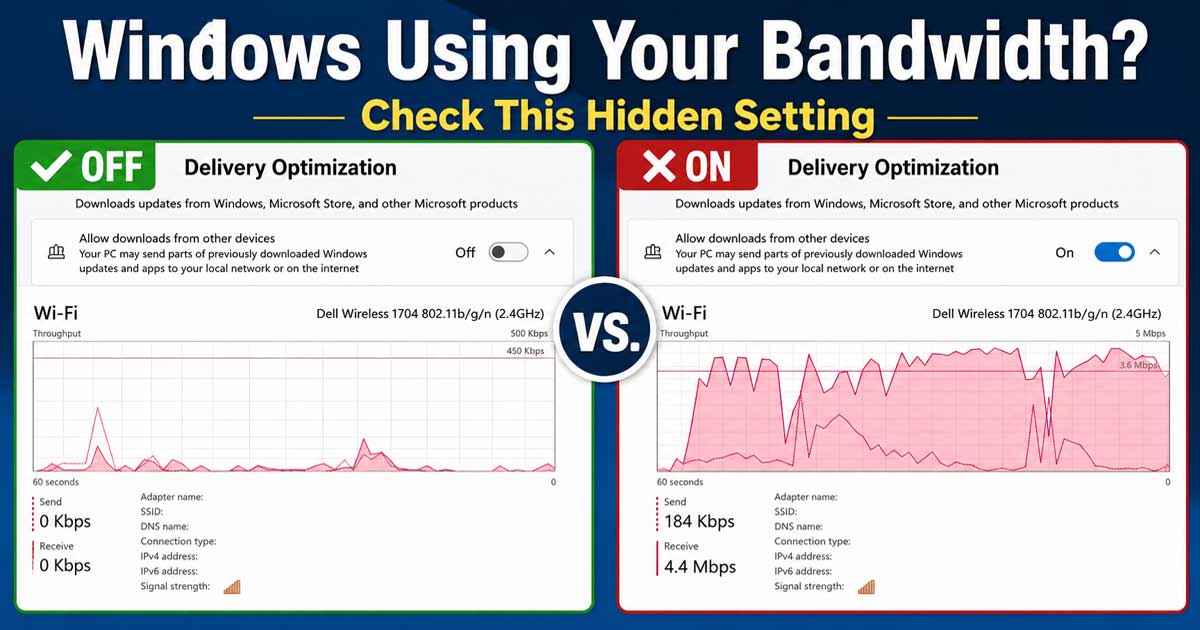
A Windows feature called Delivery Optimization may be using part of your internet connection to share Windows update data with other computers. Microsoft designed the feature to speed up updates and reduce load on their servers by allowing PCs to share portions of downloaded update files with each other.
For some users this works fine and goes unnoticed.
For others, especially people with slower internet connections, multiple devices on the network, or limited bandwidth, it can create frustrating slowdowns. Recent reports also mention increased memory usage and background activity associated with Delivery Optimization.
What Delivery Optimization Is Doing Behind The Scenes
Windows can:
- Download update files from Microsoft
- Download portions from other PCs
- Upload portions of update files to other PCs
- Store update files locally for future sharing
This can continue even after your own computer finishes updating.
Common symptoms include:
- Random internet slowdowns
- Lag during gaming
- Choppy video meetings
- Slower uploads
- Increased background network activity
- Unexpected bandwidth usage
My Recommendation For Home Users
For most home users and many small business users, I see very little reason to allow your computer to upload update files across the internet.
If you only have one Windows computer, I would simply disable it.
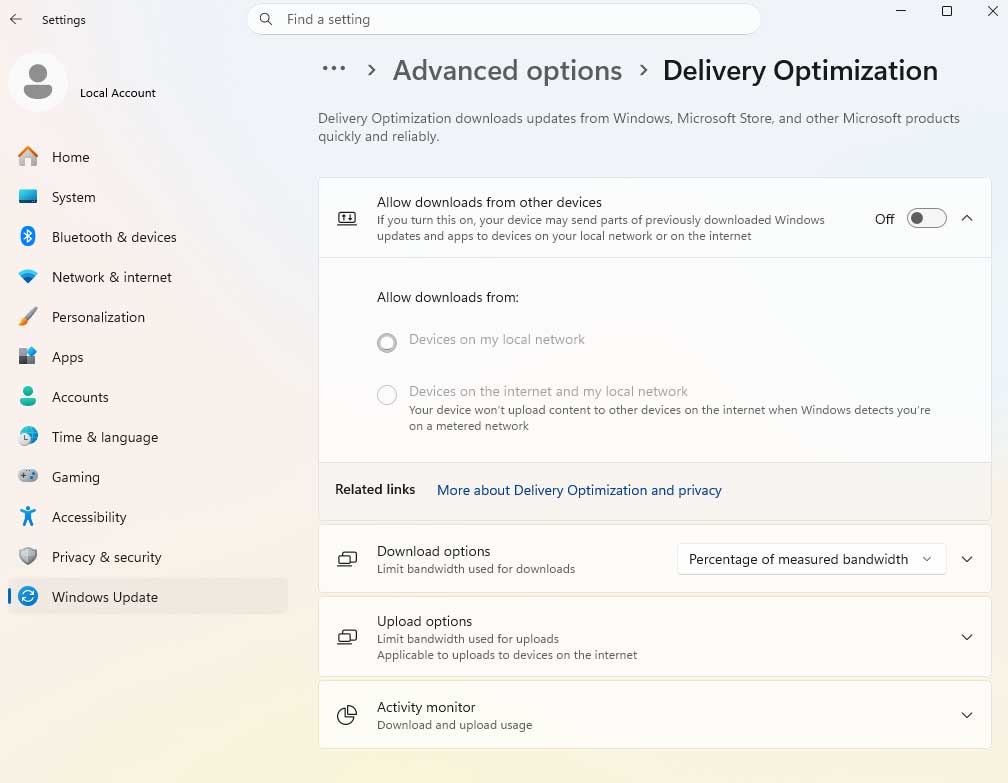
If you have several Windows computers in the same home or office, a middle-ground option is limiting it to:
Devices on my local network only
That still allows your own computers to help each other without using internet bandwidth for outside systems.
How To Turn Off Delivery Optimization In Windows 11
- Open Settings
- Click Windows Update
- Select Advanced Options
- Click Delivery Optimization
- Turn off:
Allow downloads from other devices
That’s it.
Windows updates will still work normally. Your computer will simply download updates directly from Microsoft instead of participating in peer-to-peer sharing. Microsoft states that disabling this setting does not disable Windows Update itself.
Alternative Option: Local Network Only
If you have multiple Windows computers at home:
- Open Settings
- Open Windows Update
- Select Advanced Options
- Select Delivery Optimization
- Leave sharing enabled
- Choose:
Devices on my local network
This allows update sharing only between your own devices.
Need Help Tracking Down Internet Problems?
Slow internet is not always your internet provider.
Background services, update settings, wireless issues, and software running behind the scenes can all create problems that look like network failures.
PCITService helps home users and small businesses troubleshoot Windows, network, and performance problems.